![Arborgreen - LGreen - RGB - Lrg.png]](https://learn.arborgreen.net.au/hs-fs/hubfs/AG%20-%202023%20Branding%20Collateral/AG%20-%20Logo%20(Light%20Green)/Arborgreen%20-%20LGreen%20-%20RGB%20-%20Lrg.png?height=40&name=Arborgreen%20-%20LGreen%20-%20RGB%20-%20Lrg.png)
Snippet for use in emails:
There's now a snippet in HubSpot re: the Pot Levy we’re required to manually add to an order when certain items are ordered. The HubSpot snippet includes a link to this page, which will hopefully save us having to explain the Pot Levy to customers who aren’t familiar with it.
Adding the Pot Levy to an order in EXO:
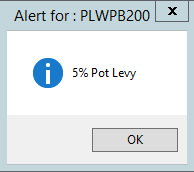
When a product needs to have the pot levy added, you’ll be prompted in EXO with a pop-up window like this:
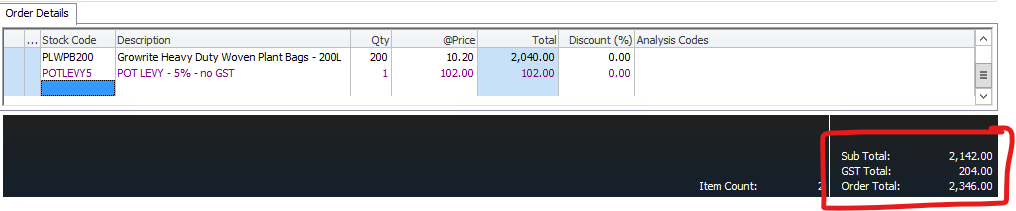
You’ll then need to add the stock code POTLEVY5 to the order in EXO, like so:
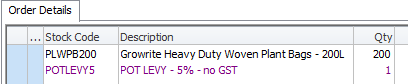
To calculate what the Pot Levy will be, add up the total dollar amount of the goods to which it applies (ex. GST), then work out 5% of that total. An easy way to work out 5% is to simply multiply the dollar total of the goods in question by 0.05.
In the example below, $2,040.00 x 0.05 = $102.00.

Finally, we need to make sure there’s no GST charged for the Pot Levy we’ve added. By default, EXO shouldn’t be charging GST on the Pot Levy, but it will sometimes show up in error when ordering against certain accounts (e.g. Cash Sales).
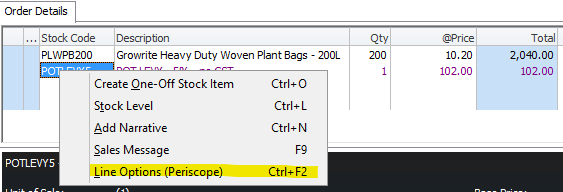
To make sure there’s no GST on the Pot Levy, right click the POTLEVY5 stock code and click Line Options (Periscope):
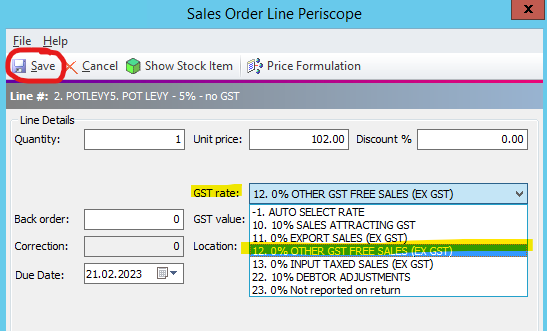
Within the pop-up box, you’ll then need to change the GST rate dropdown option to 12. 0% OTHER GST FREE SALES (EX GST), as illustrated below, then hit Save up in the top-left corner:
If done correctly, this means that the GST applied to the order should only be for the goods, and not the Pot Levy:
And that's it; you're done!